![S2 Icon Navy TM (2).png]](https://kb.systemandsoul.com/hs-fs/hubfs/S2%20Icon%20Navy%20TM%20(2).png?height=50&name=S2%20Icon%20Navy%20TM%20(2).png)
Overview
The Scoreboard is the best place in s2sync for tracking and reviewing progress toward your Objectives. Metrics (called Measures or measurables) are tracked at weekly, monthly, and quarterly intervals and should be reviewed during each Weekly Sync meeting.
This article explains where to find your key metrics and how to navigate the Scoreboard's two views.
Accessing the Scoreboard
- Log in to your s2sync account.
- In the left navigation, click Scoreboard.
💡 Tip: If this is your first time, the screen will be blank. Click + Add Measure in the top-right corner to create your first measure.
The Status Summary Cards
At the top of the Scoreboard, three summary cards give you an at-a-glance health check of all your measures:
|
✅ On Track Measures currently meeting their goal. |
❌ Off Track Measures that have missed their goal. |
🕐 Needs Update Measures awaiting new data entry. |
The Measures Table (List View)
Below the status cards, all your measurables are organized into sections by interval: Weekly, Monthly, and Quarterly. Each row shows:
- Title and description
- Owner — the team member responsible for updating it
- Goal — the target threshold (e.g., ≥ 3.00, ≤ 5.00)
- Trend — the current trend direction compared to prior periods. You can view the scoreboard at the following trends: Year-to-date, all-time, or custom.
- Historical columns — each recent period shown as a column (e.g., Mar 22–28, Mar 15–21)
A + icon in a period cell means no data has been entered yet. Click it to log a value for that period.
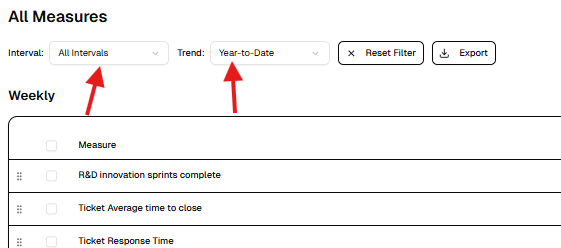
💡 Tip: Use the Interval and Trend filters at the top of the table to narrow the view to a specific cadence (Weekly, Monthly, Quarterly) or time range (e.g., Year-to-Date).
The Visual Card View (New)
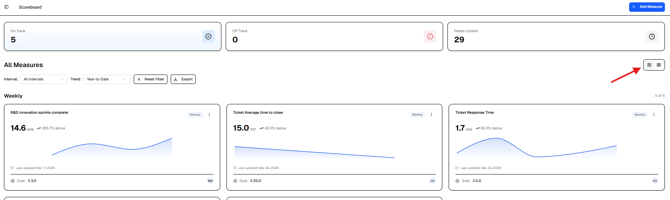
You can now switch to a card-based view that displays each measure as a visual tile with a trend chart. This makes it easy to spot patterns and momentum at a glance.
How to switch views
- In the top-right corner of the All Measures section, locate the view toggle icons.
- Click the grid icon to switch to Card View.
- Click the list icon to return to the Table View.
What you see in each card
- Measure name and interval (e.g., Weekly, Monthly)
- Current value with AVG or TOT indicator
- Trend sparkline showing performance over recent periods
- Last updated date
- Goal and Owner at the bottom of the card
💡 Tip: The card view is especially useful for Weekly Syncs — it gives leadership a quick visual summary without needing to read individual row data.
Filtering and Exporting
Use the toolbar above the measures table to refine what you see:
- Interval — filter to a specific cadence (All Intervals, Weekly, Monthly, Quarterly)
- Trend — filter by time range (e.g., Year-to-Date, Last Quarter)
- Reset Filter — clear all active filters
- Export — download the current view as a file for reporting or sharing

Adding a New Measure
- Click + Add Measure in the top-right corner of the Scoreboard.
- Fill in the Title, Description, Interval, Owner, and Goal.
- Click Create.
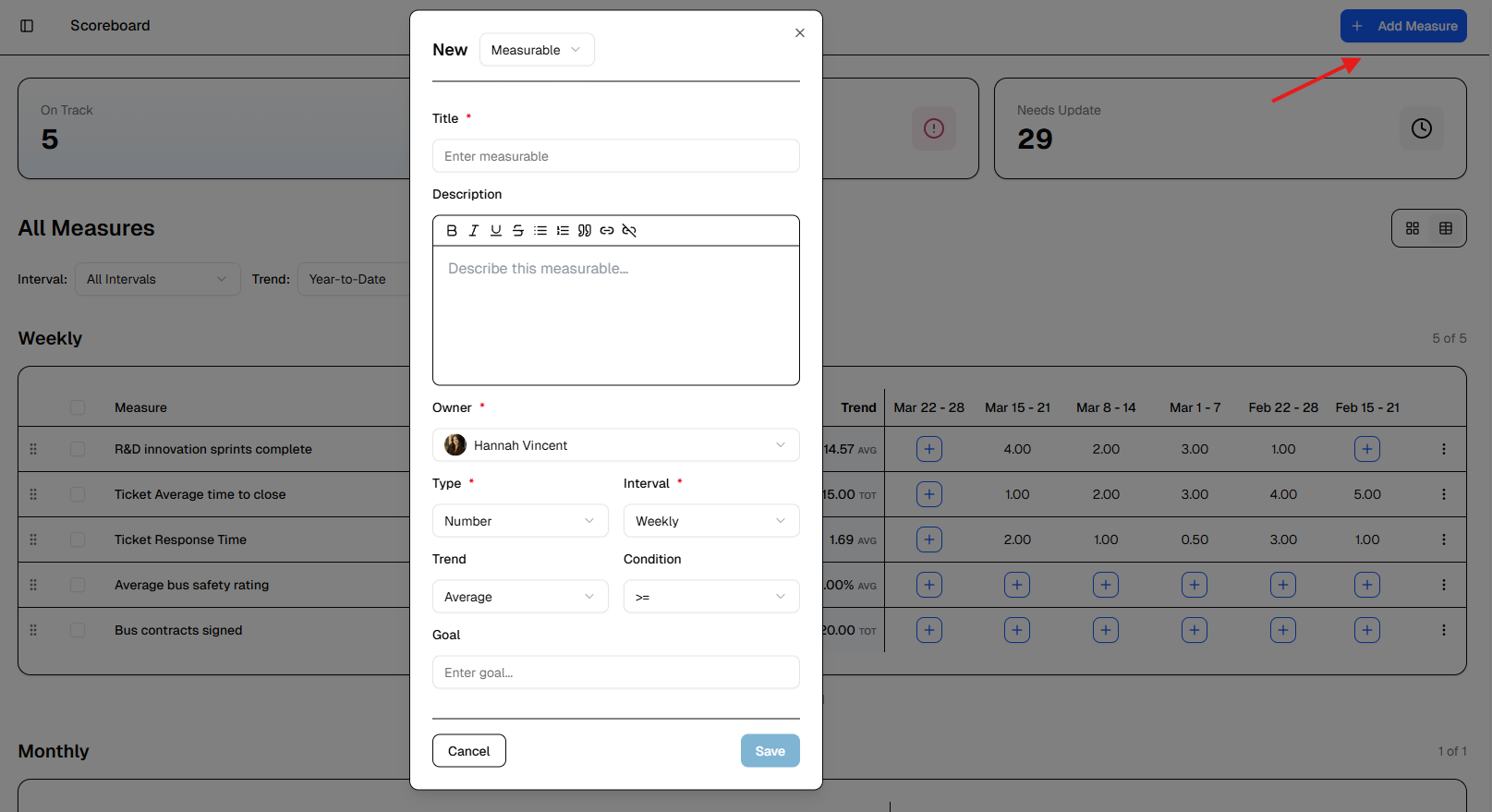
Your new measure will appear in the appropriate interval section (Weekly, Monthly, or Quarterly) and will be ready to receive data entries.