![S2 Icon Navy TM (2).png]](https://kb.systemandsoul.com/hs-fs/hubfs/S2%20Icon%20Navy%20TM%20(2).png?height=50&name=S2%20Icon%20Navy%20TM%20(2).png)
Person View vs Function View:
Exploring the Person View in the Org Chart
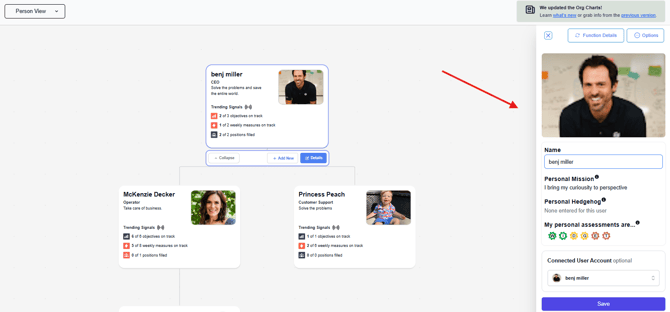
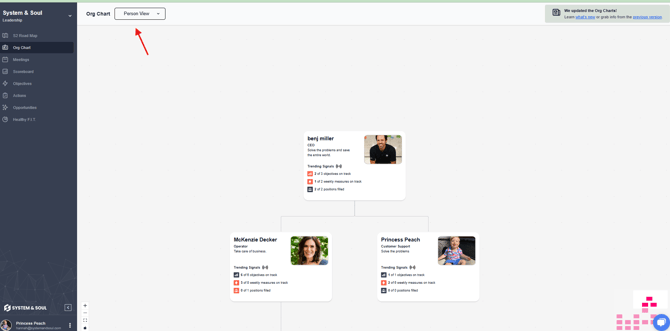 The Person View within the org chart offers a clear and intuitive way to see who occupies each seat in your organization. This view provides rich context by displaying details such as an individual’s name, personal mission, personal hedgehog, and results from their personal assessments.
To make updates or view more information, simply click on a person's card within the org chart. The card will outline blue, and then you can click on "Details." This will open their profile, where you can easily view and edit their details.
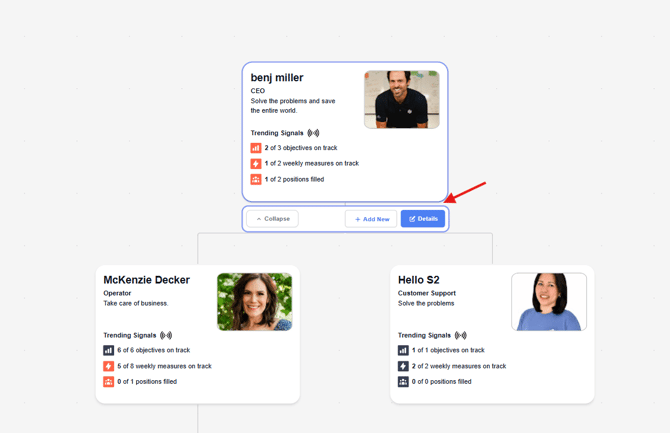
Trending Signals: When a User account is connected to a card or seat, you will see “Trending Signals” to demonstrate their status on Objectives and KPIs as well as how many open seats there are in this Function or department.
Exploring the Function View in the Org Chart
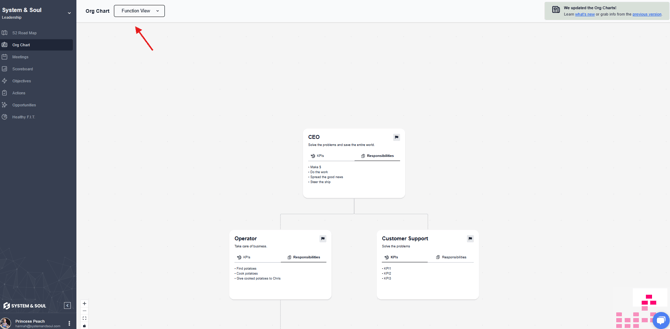
The Function View of the org chart provides a structured overview of each role within the organization. In this view, users can see and update key elements such as the function name, mission, KPIs, key responsibilities, and current status (filled, open, or interim).
To make updates or view more information, simply click on a person's card within the org chart. The card will outline blue, and then you can click on "Details." This will open the function details, where you can view and update the information as needed.
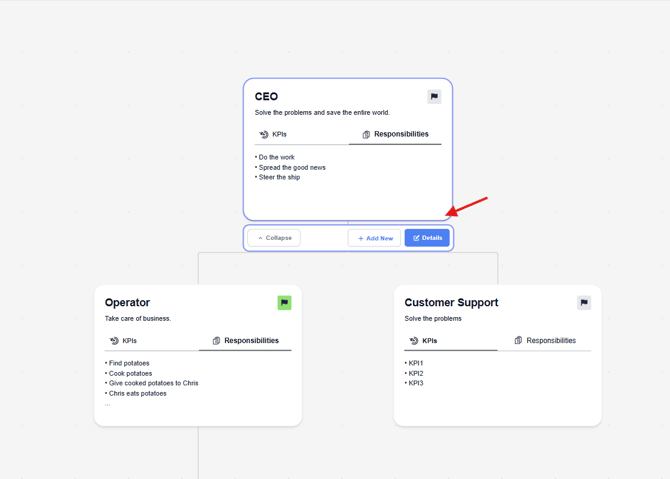
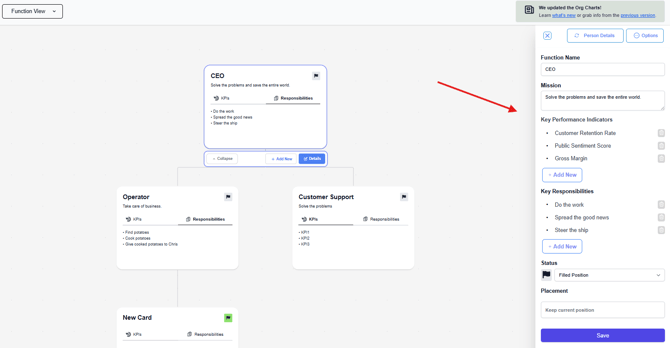
In order to see a User's details on a card, Connect a user account at the bottom of the slide out. You can only connect a user that has an active S2 Sync account.
Navigation:
- To move a box in the org chart, simply click the box for that function, hold & drag the box to the new desired location. As you move the box, the seat above that box in the org chart will show a blue outline to indicate the new location. Please note that the moved seat will be placed below the blue highlighted seat.
- To drag a box from the bottom of the org chart to the very top, you will need to begin by expanding all of the tiers. Once ready, you can click, hold & drag the box and you will be able to drag it to the top of the screen where it will pan to the top as you drag. You can then place the box in the desired location.
- You can also use the arrows (located on the bottom left of the box) to get to your desired location.
Editing a seat:
To edit a seat, simply click on the details/pencil icon on the bottom right corner of the box. This will open up a box where you can then click on "edit." From here, you will be able to edit the following information:
- Function Name
- Mission
- KPIs
- Responsibilities
- Status (Open, filled, interim)
- Placement of card
Adding a seat:
To add a seat, first determine which box you'd like for it to appear underneath. Once you have that determined, click on the "+ Add New" icon underneath that card. Your brand new card will now appear underneath and you will be able to do the following:
- Add a function
- Select and assign a user
- Name it
- Add responsibilities
- Add KPIs
- Place on the org chart
Open/Interim/Filled:
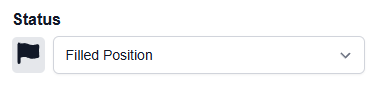
- Open means that this seat on the org chart is available for a new user to fill.
- Interim is temporary. This would mean that a user is temporarily stepping in to fill this role until a replacement can be found.
- Filled means that a user is currently occupying this role.
VIDEO: We have a helpful video that shows you exactly how to manage and update your company's organizational chart. Watch the video here.
Still have questions? Email help@systemandsoul.com and we'll get you the answers you're looking for!