![S2 Icon Navy TM (2).png]](https://kb.systemandsoul.com/hs-fs/hubfs/S2%20Icon%20Navy%20TM%20(2).png?height=50&name=S2%20Icon%20Navy%20TM%20(2).png)
Person View vs Function View:
Exploring the Person View in the Org Chart
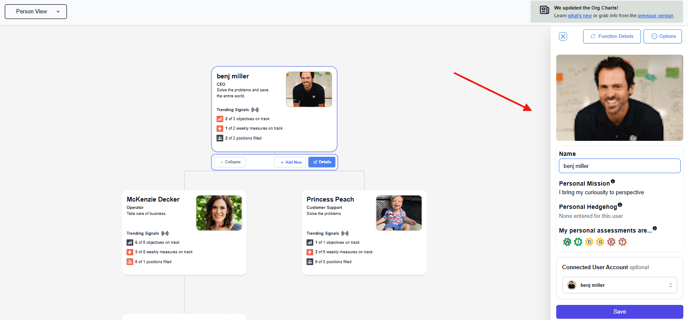
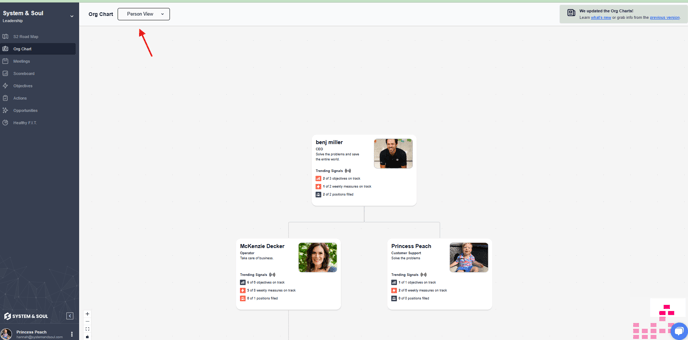 The Person View within the org chart offers a clear and intuitive way to see who occupies each seat in your organization. This view provides rich context by displaying details such as an individual’s name, personal mission, personal hedgehog, and results from their personal assessments.
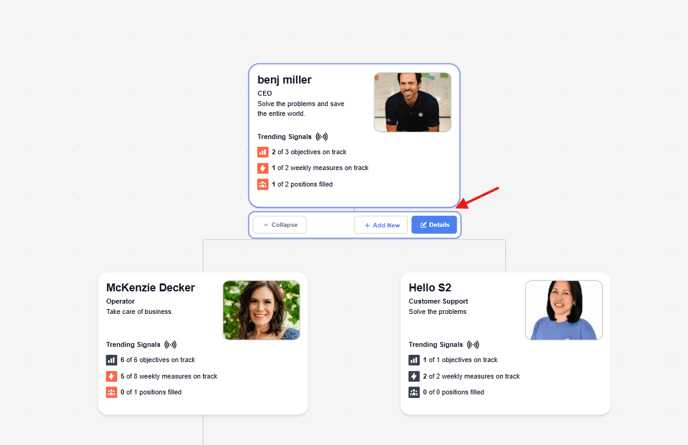
To make updates or view more information, simply click on a person's card within the org chart. The card will outline blue, and then you can click on "Details." This will open their profile, where you can easily view and edit their details.
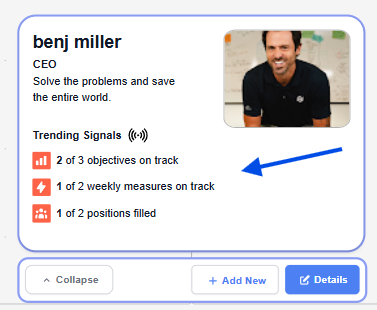
New on this view: When a User account is connected to a card or seat, you will see “Trending Signals” to demonstrate their status on Objectives and KPIs as well as how many open seats there are in this Function or department.
Exploring the Function View in the Org Chart
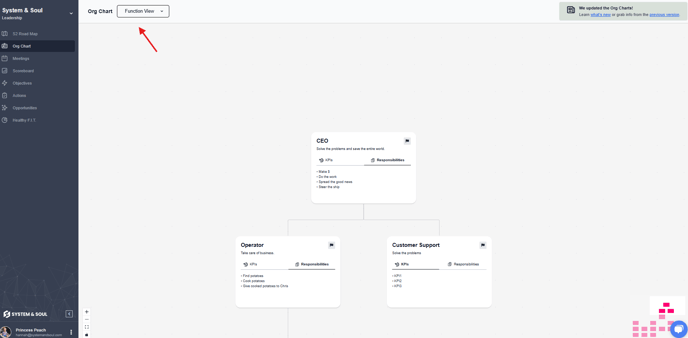
The Function View of the org chart provides a structured overview of each role within the organization. In this view, users can see and update key elements such as the function name, mission, KPIs, key responsibilities, and current status (filled, open, or interim).
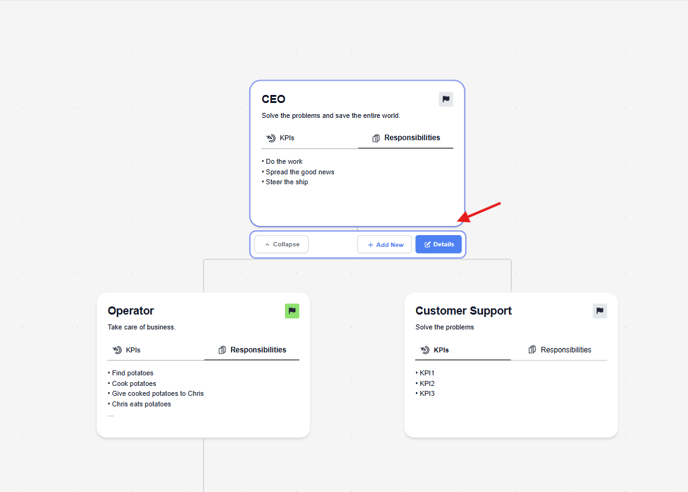
To make updates or view more information, simply click on a person's card within the org chart. The card will outline blue, and then you can click on "Details." This will open the function details, where you can view and update the information as needed.
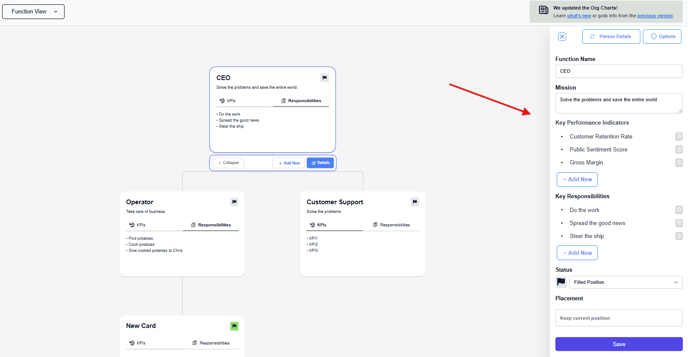 In order to see a User's details on a card, Connect a user account at the bottom of the slide out. You can only connect a user that has an active S2 Sync account.
Updated Card Details
We've expanded the information available on each card to provide a more comprehensive view of both the role and the individual in it.
-
Previous version: Displayed the function’s mission, KPIs, and responsibilities.
-
New version: Includes all of the above, plus personal mission, personal hedgehog, and personal assessments—giving you deeper insight into each team member.
Improved Functionality and Drag-and-Drop Experience
Reorganizing your org chart is now smoother than ever. Simply drag and drop cards to adjust the structure as needed—no hassle, no confusion, no jumping around.
Who has access?
All users in your S2 Sync account—whether they’re admins, members, or coaches—have full access to view the org chart. This includes visibility into each function’s and person’s details, such as KPIs, responsibilities, mission, and personal elements like hedgehog and assessments.
Common Questions
Where is my old Org Chart? Can I still access the previous version?
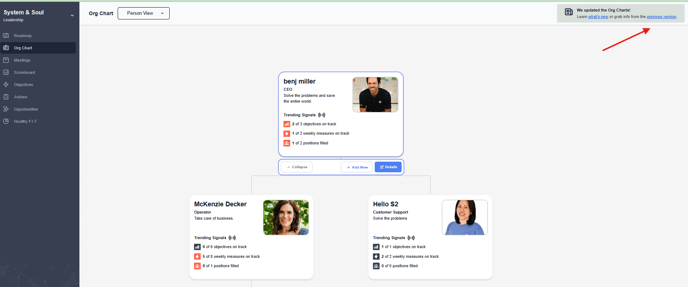
Yes! You can view the original version of your Org Chart by clicking the link located in the top right corner of your Org Chart page. Please note that this version is a static view and is no longer connected to the updated Org Chart. Any future edits should be made directly in the new version to ensure your information stays current.
Do I need to connect every Org Chart card to a user in my S2 Sync account?
No. If a seat in the Org Chart is occupied by someone who isn’t currently part of your S2 Sync account, you can still enter the function-related details. However, without connecting the card to an active user, personal elements—such as a profile image, personal mission, personal hedgehog, and personal assessments—will not be available for that seat. You can still build out your Org Chart for your whole company even if each person does not have an S2 Sync account.
How can I get an image to appear in the Org Chart?
If your Gmail is connected to your S2 Sync account, your profile image will preload automatically. You can also manually upload an image by going to User Settings and selecting an image to add.
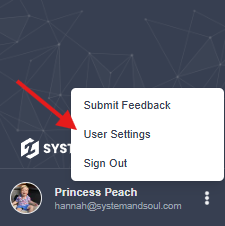
To find User Settings, navigate to the bottom left corner of your screen and click on the 3 dot menu and select User Settings. On the User Settings page you can update your name, email address, and avatar.
How can I delete a card from the Org Chart?
To delete a card, click on the card to open it, then select Options in the top-right corner and choose Delete.
Is there a limit to how many seats I can include in the Org Chart?
No, there’s no limit—you can add as many seats as needed. Just note that cards connected to active users will display more detailed information than those that are not.
How do I mark a seat as an open position?
Click on the card and navigate to the Function Details tab. Under Status, select Open if the role is unfilled. You can also choose Filled for occupied roles, or Interim for temporarily assigned positions.
How can an admin fill in assessments for users?
To fill in your assessments or any users assessments, navigate to company settings > users. On this screen, look all the way to the right of a users name and click on the 3 dot menu and select "Edit Skills." From here, you can update your Working Genius (which appears on the Org Chart and Personal Road Map) or another assessment. 