![S2 Icon Navy TM (2).png]](https://kb.systemandsoul.com/hs-fs/hubfs/S2%20Icon%20Navy%20TM%20(2).png?height=50&name=S2%20Icon%20Navy%20TM%20(2).png)
- Log in to your S2 Sync account.
- Click on Meetings.
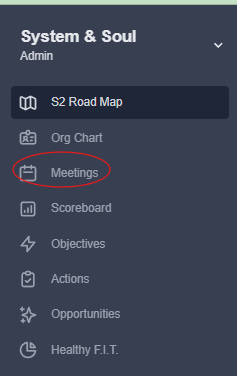
- There are 2 ways to start a meeting:
.png?width=510&height=67&name=meetings2%20(1).png)
Option 1: By using the quick start from a meeting template. You can choose from any of the meeting shortcuts that you have created. (To add a meeting shortcut to the dropdown menu, go to the New Meeting page and click the three-dot menu next to the meeting type. Select “Add Shortcut".).png?width=503&height=192&name=meetings3%20(1).png)
Option 2: by clicking the "+ New Meeting" at the top right corner of your screen. From here, you can choose a meeting from an existing template or you can customize and create your own custom template. Most users use the first option in the left column called "Weekly Sync."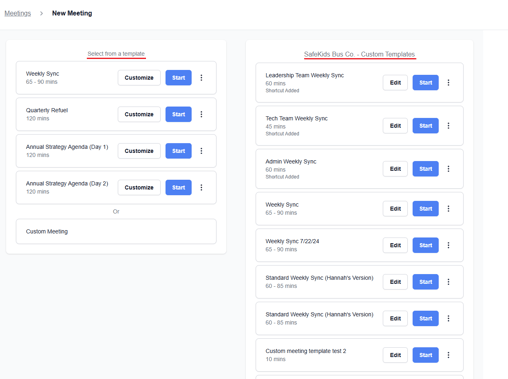
- Once you are in the meeting, you will begin in the connect section. Here, you and your participants can connect, share how you are feeling, give a shout-out, or ask a question.
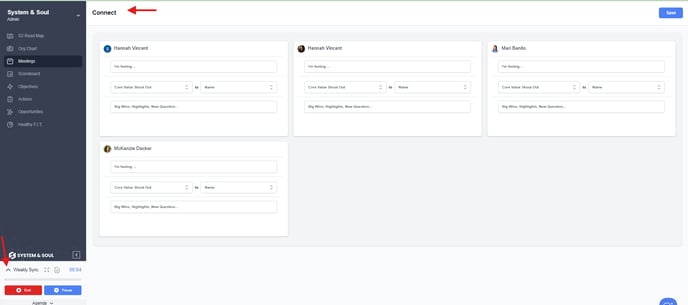
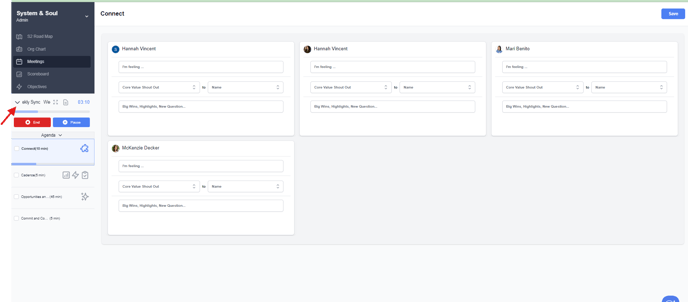
- In the bottom left corner, you'll see the meeting agenda. You can click the arrow to expand and make it larger. Use the meeting agenda to help you navigate the remainder of the meeting.
VIDEO: We have a helpful video that walks you through the process of running a meeting. Watch the video here.
Still have questions? Email help@systemandsoul.com and we'll get you the answers you're looking for!