![S2 Icon Navy TM (2).png]](https://kb.systemandsoul.com/hs-fs/hubfs/S2%20Icon%20Navy%20TM%20(2).png?height=50&name=S2%20Icon%20Navy%20TM%20(2).png)
S2 Sync allows you to export your data from several key areas of the platform. This makes it easy to share updates, analyze progress, and keep historical records for your team.
You can export data from the following places:
-
Scoreboard
-
Objectives
-
Actions
Below are step-by-step instructions for each export option.
Exporting Data from the Scoreboard
-
Navigate to the Scoreboard page.
-
Find “Scoreboard” in the top-left corner of the page.
-
Click the three dots next to “Scoreboard.”
-
Select Export.
-
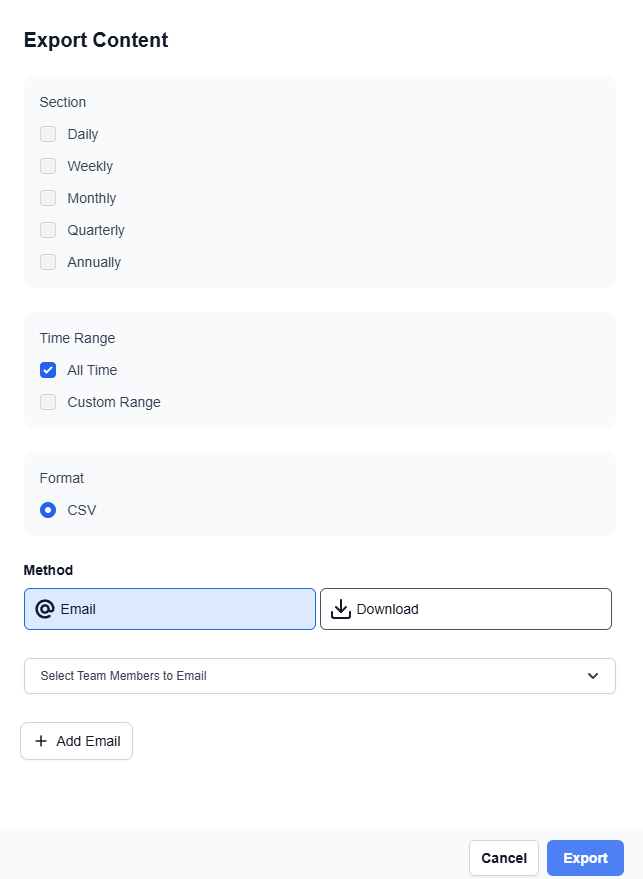
If needed, adjust export filters such as:
-
Interval
-
Time frame
-
Other available view options
-
Exporting Data from the Objectives Page
-
Navigate to the Objectives page.
-
Find “Objectives” in the top-left corner.
-
Click the three dots next to “Objectives.”
-
Select Export.
-
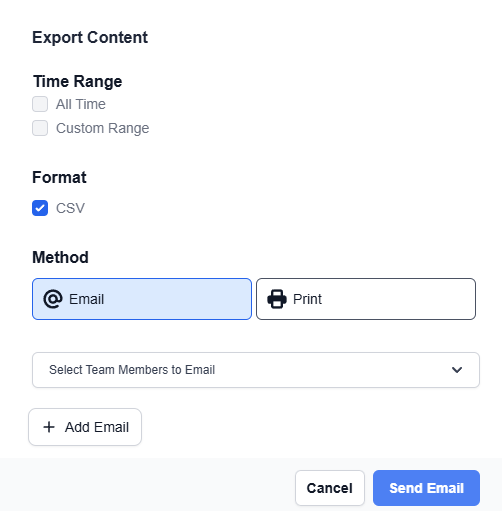
Choose your desired time range filter.
Exporting Data from the Actions Page
-
Navigate to the Actions page.
-
Find “Actions” in the top-left corner.
-
Click the three dots next to “Actions.”
-
Select Export.
-
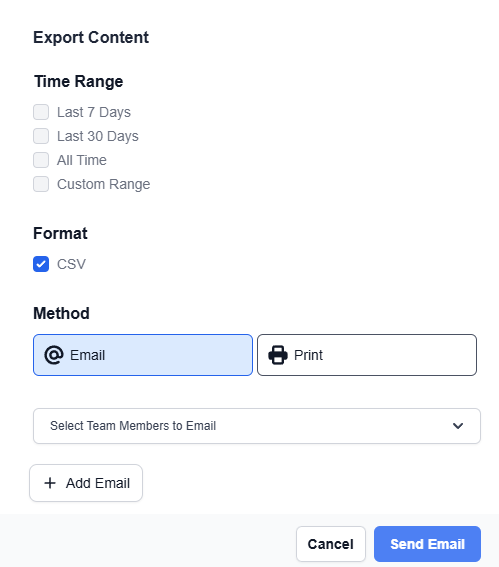
Filter your export by time range:
-
Last 7 Days
-
Last 30 Days
-
All Time
-
Custom Range
-