![S2 Icon Navy TM (2).png]](https://kb.systemandsoul.com/hs-fs/hubfs/S2%20Icon%20Navy%20TM%20(2).png?height=50&name=S2%20Icon%20Navy%20TM%20(2).png)
Sign-up Process for S2 Sync:
1. Go to https://s2sync.com/auth/signup
2. Choose how you'd like to sign-up. You may sign up with Google, Facebook, or simply type in your email address.
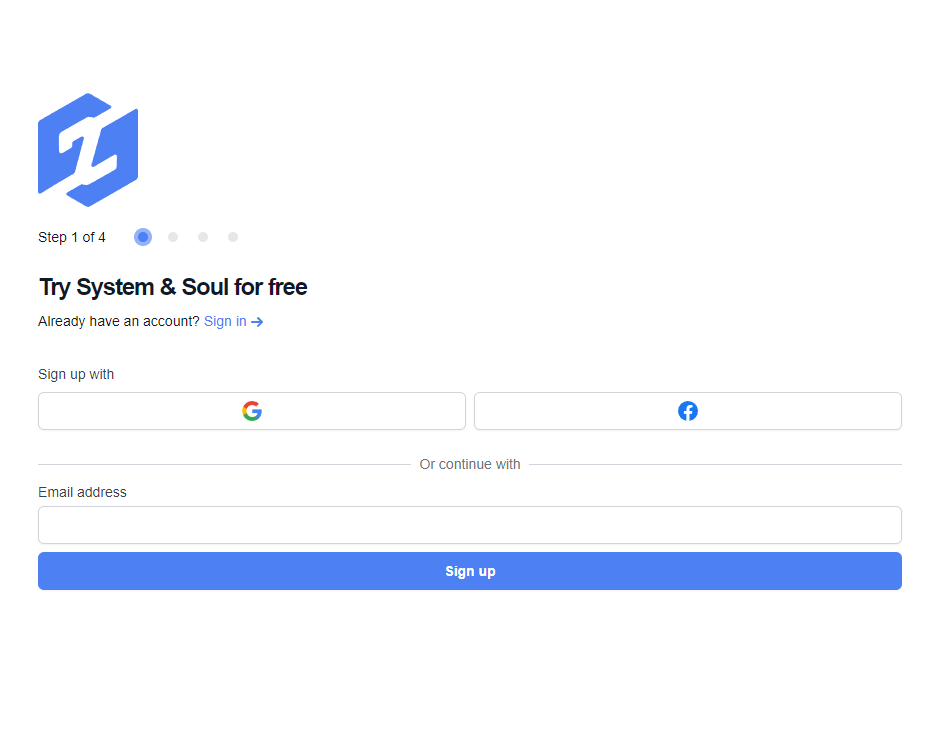
3. Choose a company name. If you have a coach, enter their email. If you do not have a coach, click the "I don't have a coach" box. Press continue.
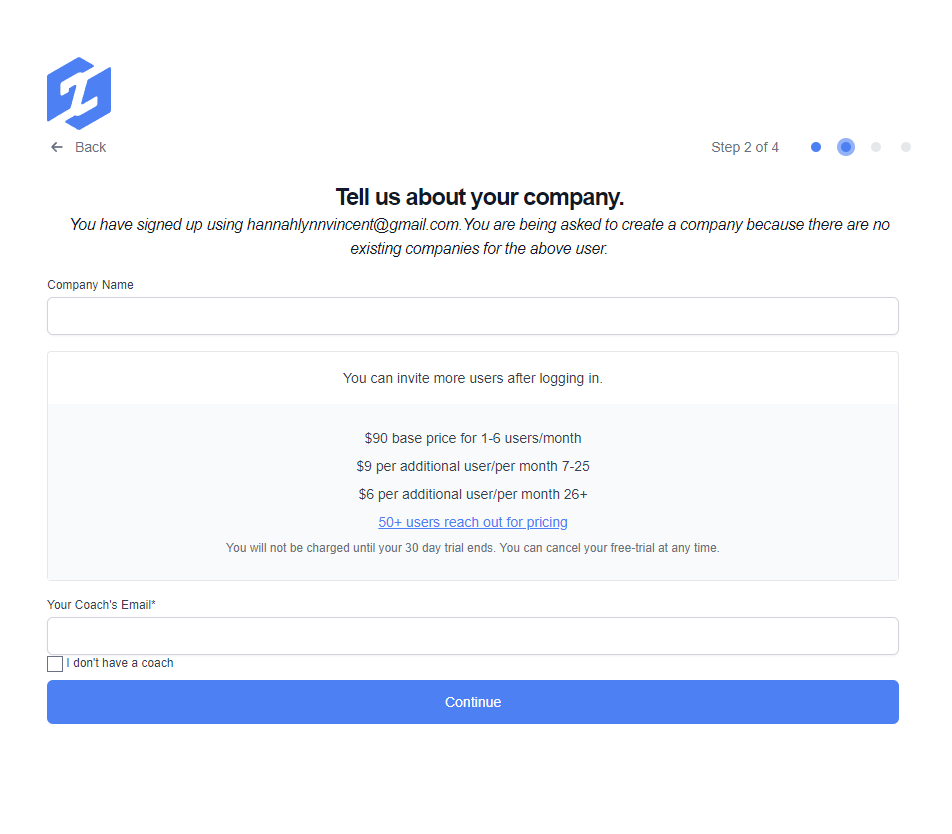
4. Enter your payment information. You must have a valid credit card to create an account, but please note that you have a free 30-day trial and you can cancel your account at any time.
5. Choose the teams you'd like to have within S2 Sync. By default, you will already have a leadership team, but if you'd like to add additional teams you may do so.
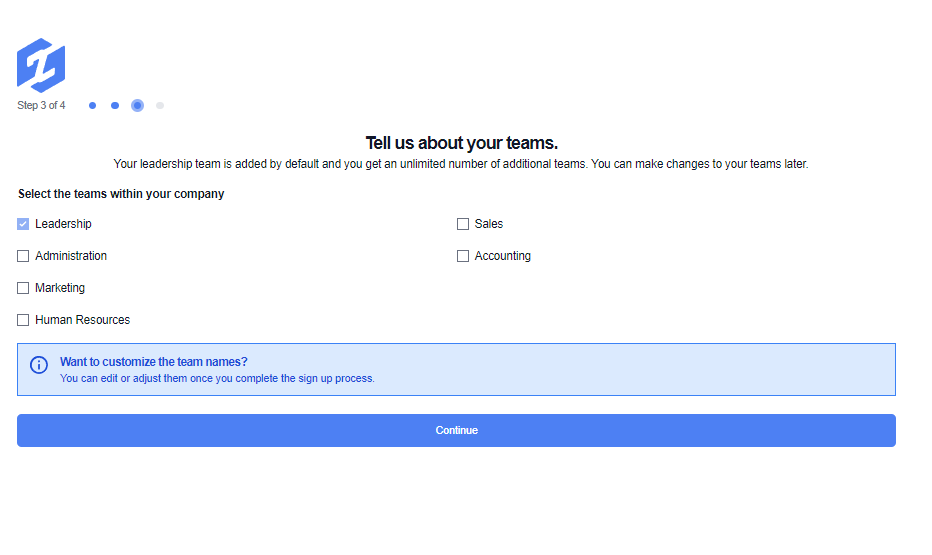
Tip: You can always add or remove additional teams later on.
6. Choose up to 5 of the users you'd like to add to your account. Enter their email address, select a role (admin, member, or coach) and choose which team you'd like them to be a part of.
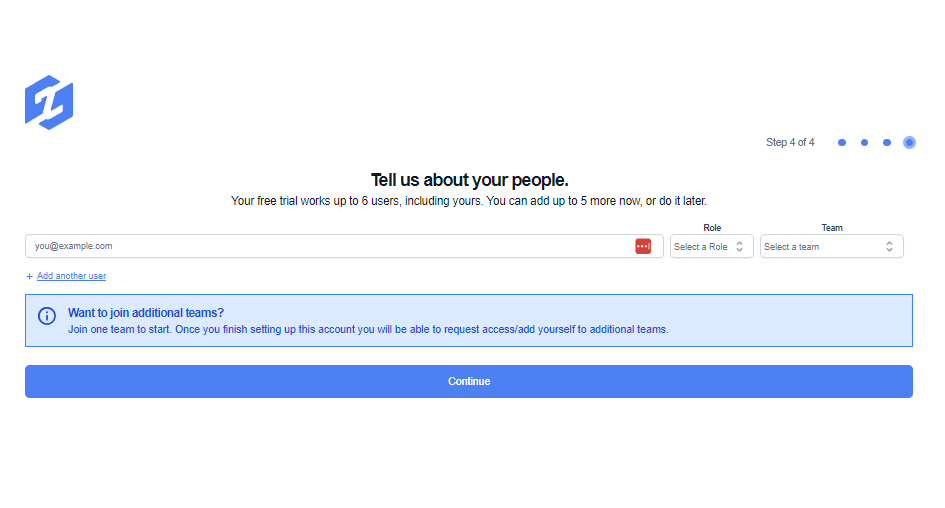
Tip: You can always add more users once you've created your account.
7. You're finished! Once you've successfully created your account you will see the following welcome screen:

Suggestion:
Once you are logged into your newly created account, we recommend you check out the following:
- Settings
- Meetings
- Add Users
Should you need any assistance, reach out to help@systemandsoul.com for help!