![S2 Icon Navy TM (2).png]](https://kb.systemandsoul.com/hs-fs/hubfs/S2%20Icon%20Navy%20TM%20(2).png?height=50&name=S2%20Icon%20Navy%20TM%20(2).png)
Step-by-Step: Requesting Access to a Personal Road Map
-
Go to the Healthy F.I.T. Section
Log in to your S2 Sync account and navigate to the Healthy F.I.T. section from the main navigation.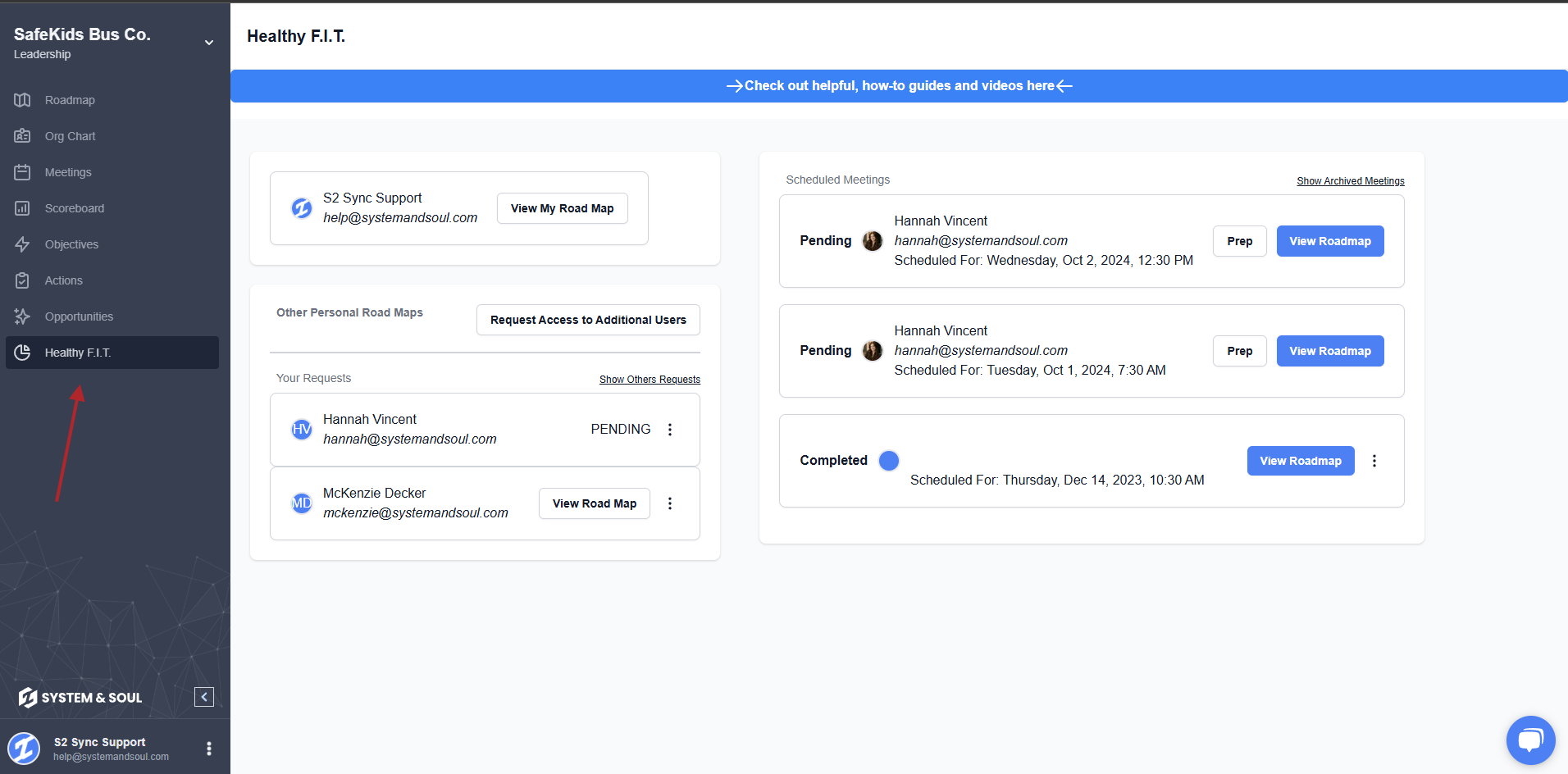
-
Find the "Other Personal Road Maps" Area
On the main Healthy F.I.T. screen, you'll see a section labeled Other Personal Road Maps. This is where you can manage access to your team members’ Road Maps.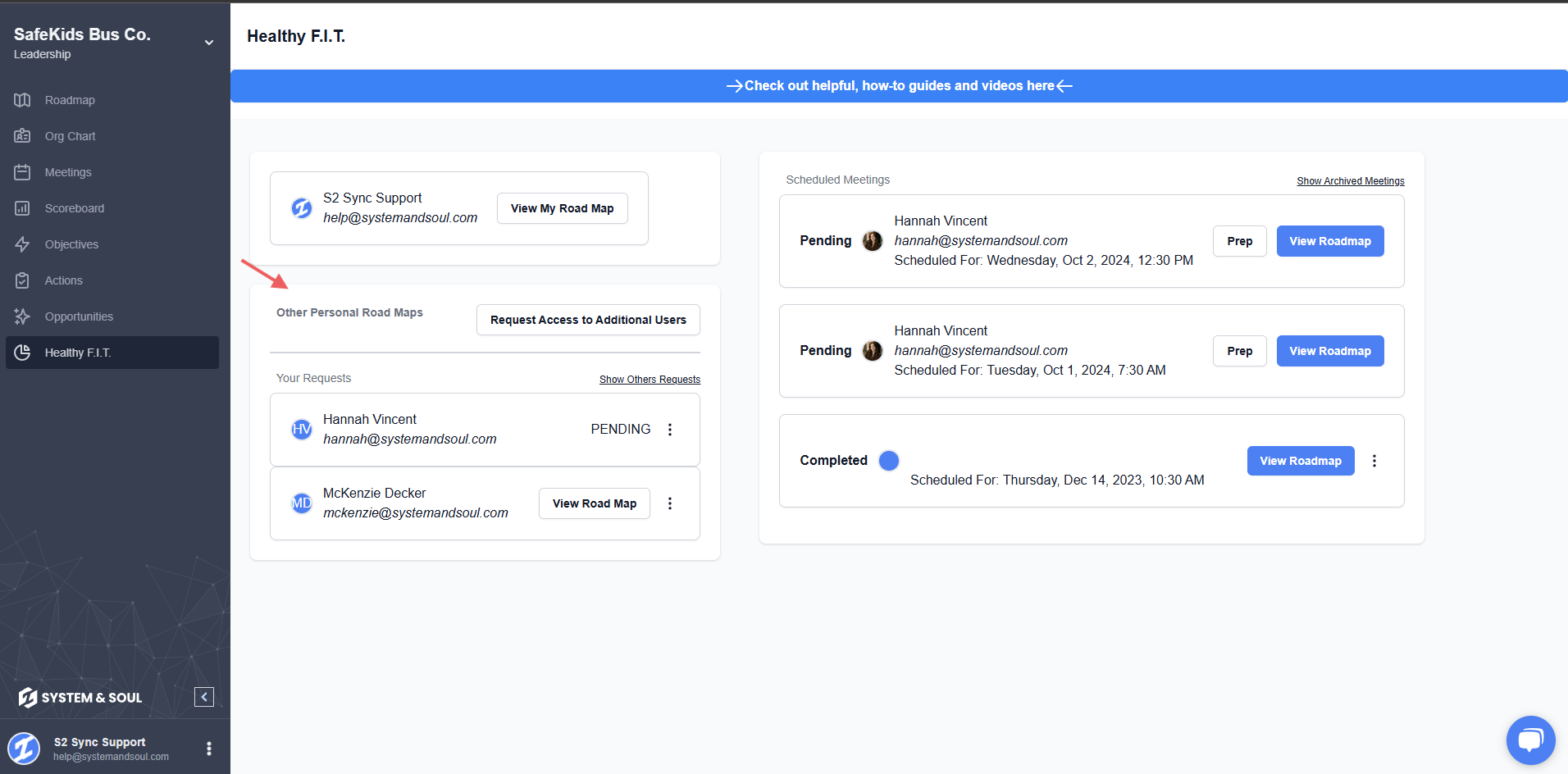
-
Request Access
-
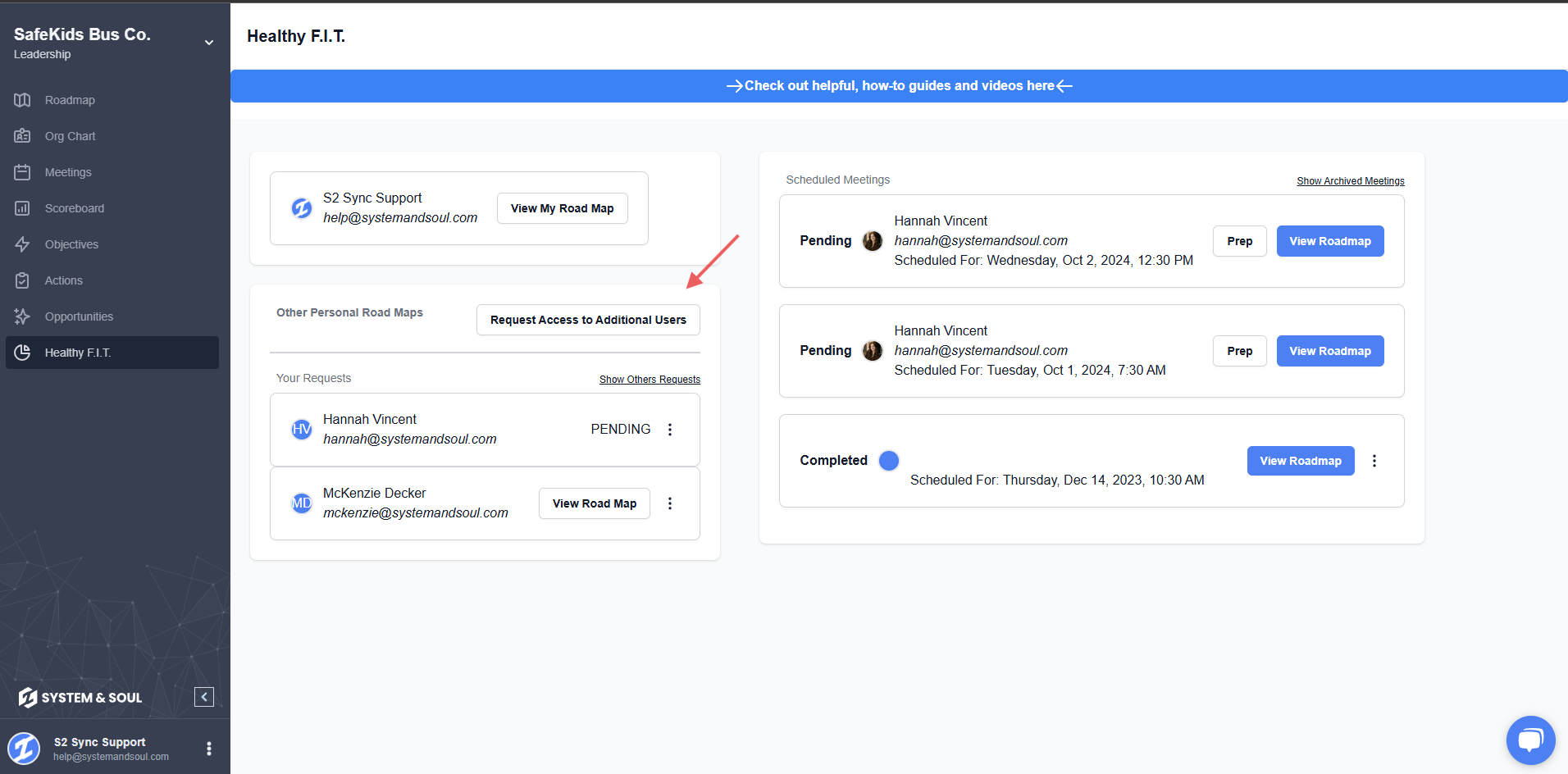
Click on Request Access to Additional Users.
-
Scroll through the list to find the name(s) of the user(s) you'd like to view.
-
Check the box next to their name and click the blue Request Access button.
-
-
Wait for Approval
The user will receive an email notification of your request. They can choose to approve or deny access. Once approved, you’ll be able to view their Personal Road Map directly from the Healthy F.I.T. section.
💡 Tip:
If you're unable to find someone in the list, make sure they are part of your organization within S2 Sync and have already activated their account. If you have trouble with this, please reach out to help@systemandsoul.com for support.