![S2 Icon Navy TM (2).png]](https://kb.systemandsoul.com/hs-fs/hubfs/S2%20Icon%20Navy%20TM%20(2).png?height=50&name=S2%20Icon%20Navy%20TM%20(2).png)
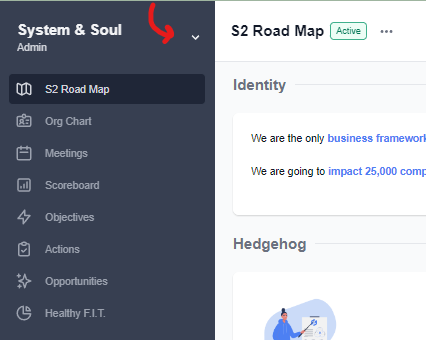
1. Click the drop-down arrow next to the company name in the top left corner of your screen.
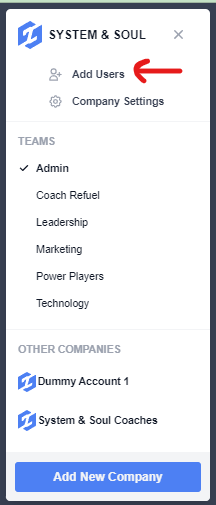
2. Click on "Add Users"
3. Type the email address of each person you would like to add.

4. Select their role: either coach, admin, or member. Please note: An admin has more permissions than a member.
5. Click "Send Invite" in the top left corner.
6. An invitation will then be sent to the email address you entered and will need to be accepted before they can become a user in your account.
VIDEO: Watch our quick video on how to add users through the Settings tab.
Tip: If the person you sent the invitation to has not accepted their invitation, you can always send them a gentle reminder to accept. To do so, navigate to Settings > Users and find the name of the "pending user." From here, click the 3 dots to the far right and choose "Reinvite." This will send them a new email invitation to join your account.
Still have questions? Email help@systemandsoul.com and we'll get you the answers you're looking for!